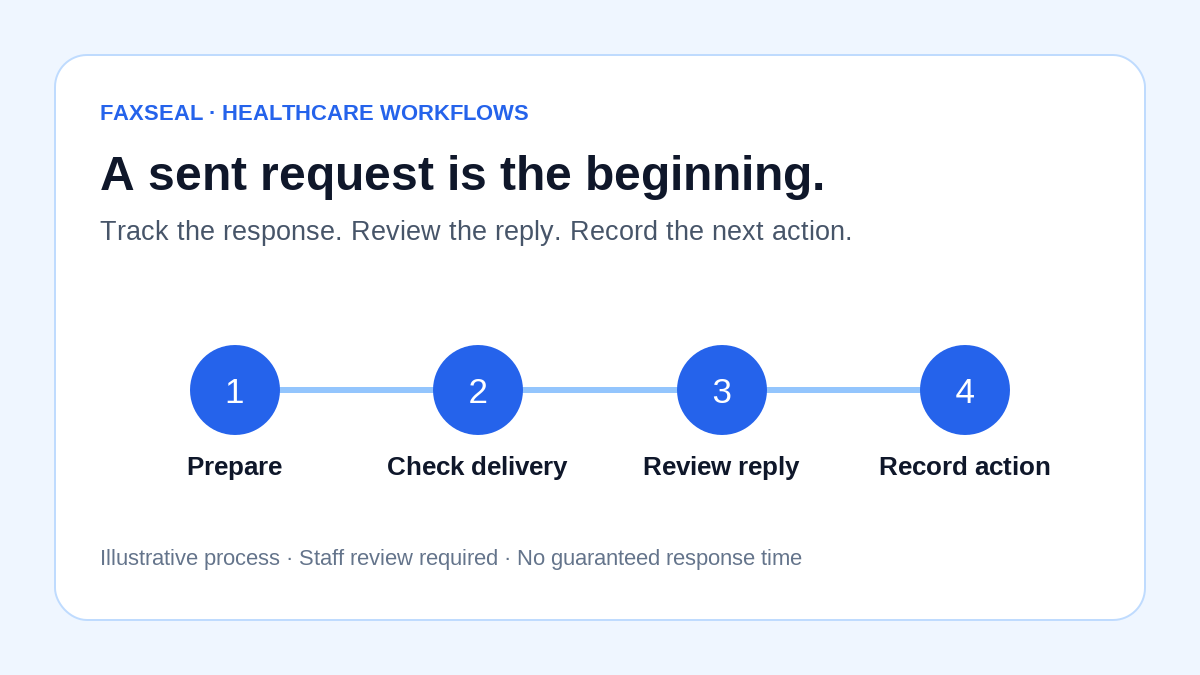
The direct PCP referral request form asks the primary care office to supply a missing referral. It does not create a clinician-approved referral, payer authorization or appointment.
Request prepared
Review the PCP destination, reply instructions, PDF and exact cost.
Transmission checked
Wait for delivered or failed status. Delivery does not establish PCP review.
Response reviewed
Open the document and confirm the patient and requested referral before confirming a match.
Next action recorded
Keep the request open or record the appropriate outcome after staff review.
Illustrative checkpoints, not automatic status transitions or a guaranteed timeline. Staff review and record the outcome.
Start with the actual request and reply instructions
Confirm what is missing, verify the PCP’s fax number and provide usable return instructions. Review the generated PDF and exact cost before confirming a send. Keep patient information inside the appropriate approved workflow, not in blog links or public comments.
After sending, open the referrals list and the relevant request. Where tracking is available, its detail view shows the fax attempts, delivery evidence, outcome and follow-up controls. Use the same account or office workspace that owns the request.
Read delivery status separately from the outcome
Queued or sending means transmission is still in progress. Delivered means carrier-confirmed transmission to the fax number. It does not confirm that the PCP read the request or issued a referral.
A failed original and a successful resend remain part of the same request’s history. The default follow-up date uses the first confirmed delivery in that chain, plus the configured interval shown by the product. An unsuccessful transmission does not start that delivery-based date.
Open possible replies before confirming them
A received fax can be suggested as a possible response when its sender number matches an eligible delivered request in the same account or office. A sender-number hint is not a patient match. Ambiguous candidates may remain unlinked rather than being assigned automatically.
Suggestions require a fax actually received into the relevant FaxSeal account or office. FaxSeal cannot infer a response that arrived only on another service or through a phone call. Check the return channel your office provided.
It answers this request
Choose Confirm response. Then review what the PCP actually supplied and record the next action separately.
It is the wrong match
Choose Dismiss match. Dismissing the suggestion does not resolve the request.
If uncertain, leave the suggestion unconfirmed while staff check it. Undo controls are available for a recorded confirmation or dismissal.
The reply-review controls are Confirm response and Dismiss match, with undo controls for recorded decisions. Confirm only after checking the patient and referral against the original request. Confirmation records that a response belongs to the request; it does not automatically mark the referral resolved.
A manually linked response also needs review. If no correct reply is suggested, use the available manual linking controls in the appropriate workspace or record the next action through your office’s process.
Use the follow-up date and “Needs follow-up” filter accurately
Where shown, Change date lets staff set the next follow-up date, and Use default restores the configured delivery-based schedule. Read the date displayed on the request rather than assuming a fixed response deadline.
“Needs follow-up” means all of these conditions apply
- The recorded outcome is Open.
- A fax in the request’s resend chain has confirmed delivery.
- There is no staff-confirmed reply.
- The follow-up date has arrived.
A confirmed reply removes the no-confirmed-reply condition, even when staff still have work to do. If the response is incomplete, use your office’s next-action process rather than assuming this filter will continue flagging it. Changing an outcome or confirming a match is not a substitute for reviewing what the PCP actually supplied.
Email reminders: check current availability
Email reminder delivery is currently disabled. Do not rely on a saved reminder preference to produce an email. Review the follow-up list manually and use your office’s existing reminder process. This article does not enable reminders.
Confirming a reply or recording an outcome other than Open stops eligibility for a no-reply reminder. A possible match alone does not count as a confirmed response. When reminder delivery is enabled, it is an email notification, not a new request sent to the PCP.
Resend deliberately and keep one request history
Check the existing transmission before resending. Resend is available for a delivered or failed fax; wait while a transmission is still in progress. Review the destination and current charge, then explicitly confirm the resend. A due date or reminder does not itself resend a fax.
A resend stays grouped under the original request rather than creating an independent referral outcome. Staff can inspect the attempt history and each transmission’s tracking record. A failed first attempt followed by a delivered resend is not two completed referrals.
Record the outcome after staff review
| Label | What staff record |
|---|---|
| Open | The request remains open. Review what is outstanding and use your office’s follow-up process. |
| Scheduled | Staff record that it is scheduled after checking the actual scheduling situation. FaxSeal does not book the appointment. |
| Declined | Staff record a declined outcome based on the response they reviewed. This is not an automated clinical judgment. |
| Closed | Staff close the request when appropriate. A closed label alone does not establish that a referral was issued. |
Before any fax in the chain is delivered, the controls permit Open or Closed, but not Scheduled or Declined. After delivery, staff can select the appropriate outcome. The labels record the user’s decision; FaxSeal does not independently verify clinical approval or appointment attendance.
An illustrative front-desk example
When to use the separate shared PCP office workspace
Direct PCP request form
Sign in, prepare one request, review its PDF and cost, then confirm sending. Separate shared workspace setup is not required; existing office restrictions still apply.
Start one PCP request →Shared PCP office workspace
Organize shared requests and assignments. The office owner completes applicable setup and agreements; activation depends on service readiness. Staff attach and review replies.
See the shared workspace →The shared PCP Requests & Follow-up workspace has its own office setup, agreement, access and service-readiness requirements. It supports shared office work and manually reviewed attachments. Do not assume the direct form’s outcome labels or sender-based reply suggestions describe every part of that workspace.
Before working with patient information, review the applicable agreement requirements and privacy and retention policy. Separate clinical and payer requirements still apply.
Workflow reviewed November 25, 2026 against FaxSeal’s request tracking, reply review and resend behavior. Graphics are process illustrations, not outcome statistics. Feature availability and office restrictions still apply.